Job Description Templates
Summary
Job description templates allow you create and save customized job descriptions that are frequently used by your organization. These job descriptions can then be used any time you create or edit a position.
Details
A new Position Templates page has been added to Recruiting Preferences. From this page, you can create new templates and edit existing job description templates.
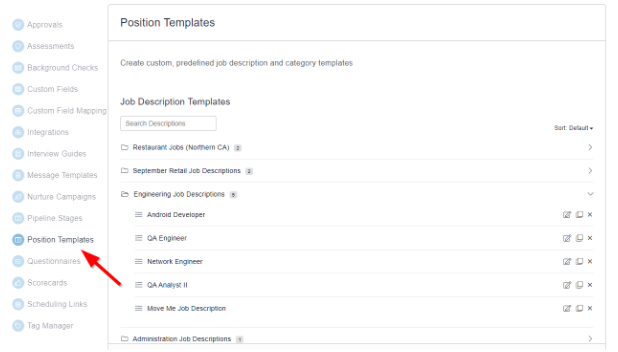
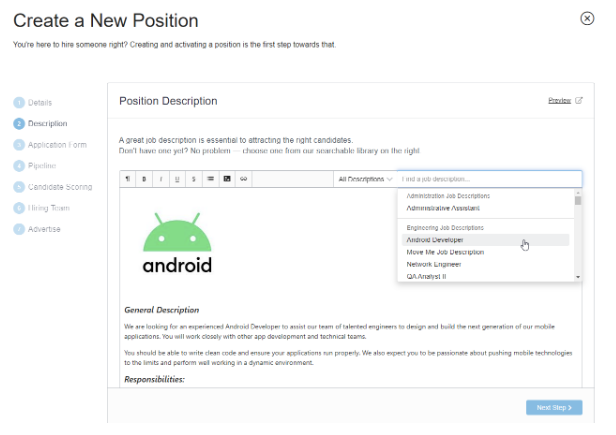
Your customized job description templates will be available for selection when you create or edit a position. The dropdown list will show your customized descriptions, in addition to the standard system descriptions. You can select a description to add it to the position. Changes to the text can be made, if necessary.
Apply with LinkedIn Integration
Summary
PeopleFluent Recruiting is now integrated with the Apply with LinkedIn feature. When the integration is enabled, recruiters can allow candidates to apply for positions via LinkedIn on the career site. A LinkedIn button will display within a job posting. When clicked, an application screen displays that is populated with information from the LinkedIn account.
Use of this integration requires organizations to have an Apply with LinkedIn business account. The administrator setting up the integration will need the appropriate business account credentials to enable it. Please work with LinkedIn directly to obtain and manage your organization's business account.
Note: When you enable this integration, you are enabling it on the organization level. Apply with LinkedIn will be available on all job postings and cannot be disabled on a position-by-position basis.
Configuration
The integration must be enabled by an administrator.
- Go to settings (gear) menu > Recruiting Preferences > Integrations and then scroll down to the Sourcing section, where you will see the LinkedIn card.
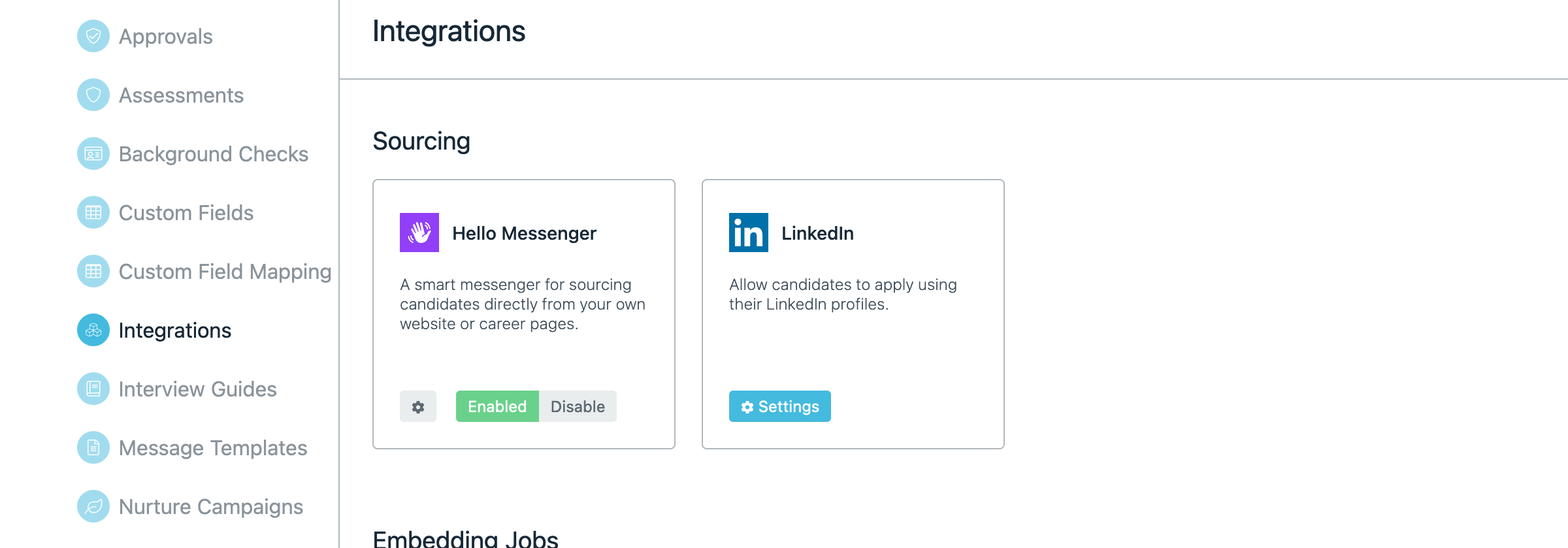
Figure: Apply with LinkedIn in Sourcing Integrations.
- Click Settings to open the LinkedIn integration dialog. Note: If you are already logged in to a LinkedIn session on your system, you may get an error. You will need to sign out of that LinkedIn session. This is a known LinkedIn issue that is under review.
- Click the Sign In button on the screen and sign in with your organization's LinkedIn business account credentials.
- A page displays available LinkedIn integrations. Click the Choose Package button.
- Locate the Apply package and click the checkbox.
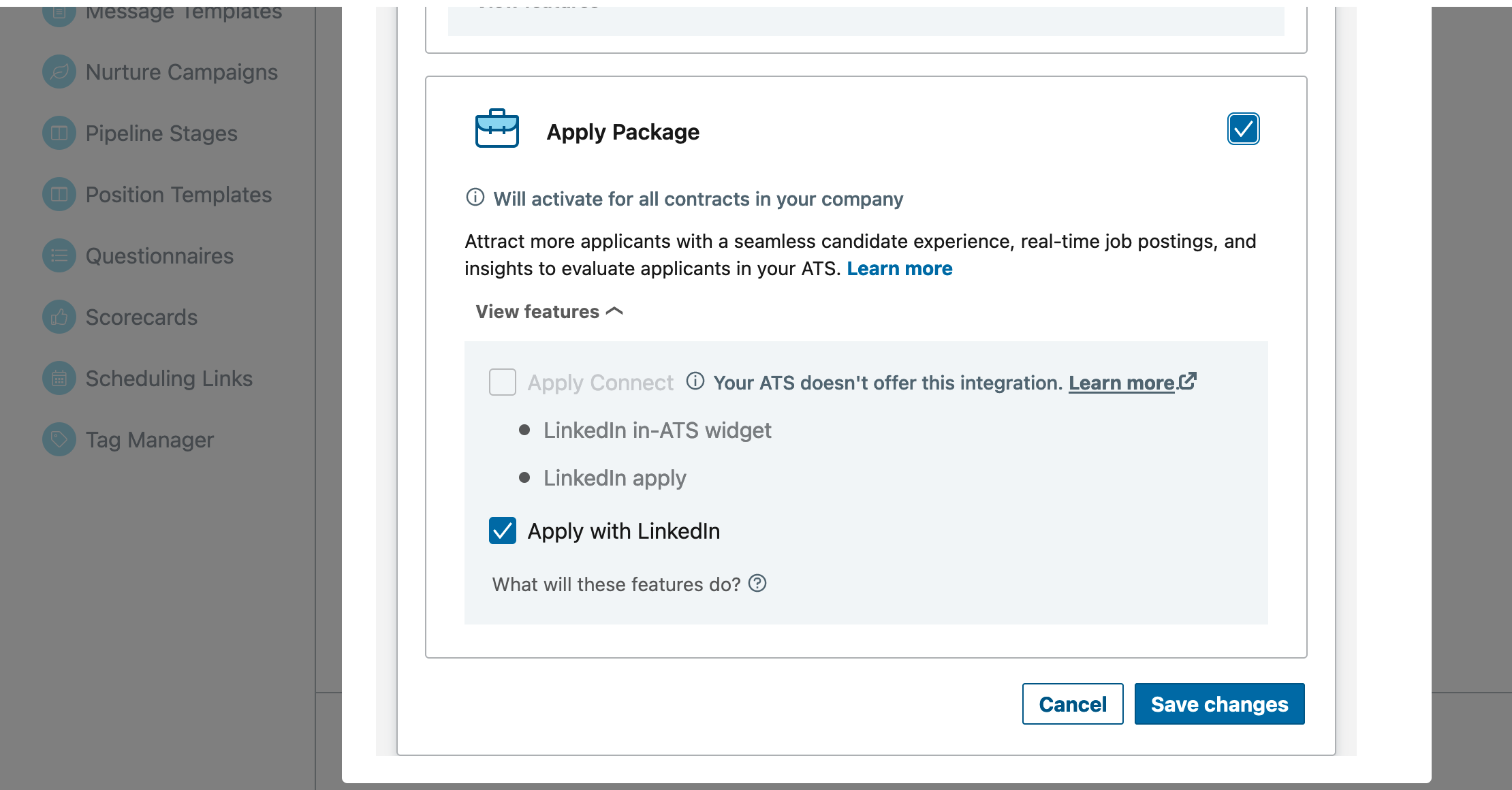
- Click Save Changes.
Candidate View
When the Apply with LinkedIn integration is enabled, a LinkedIn option is available within the job posting on the career site.
- If the candidate is already logged in to LinkedIn, the Apply with LinkedIn button displays.
- If the candidate is not logged in, the Sign in with LinkedIn button displays. The candidate can select this button and enter credentials. Once signed in, the button on the job posting changes to Apply with LinkedIn.
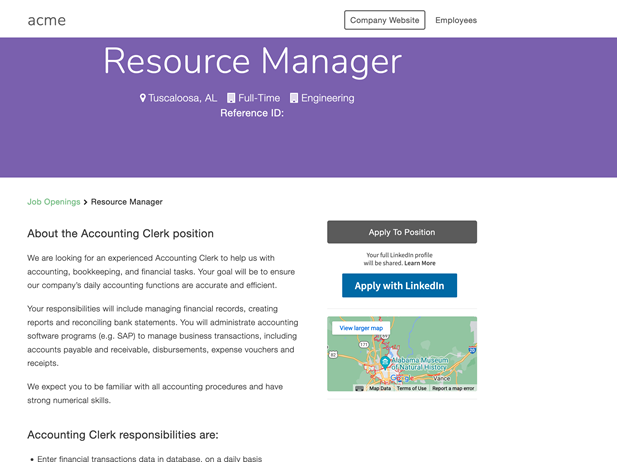
When the candidate clicks the button, the Apply page displays with information from the LinkedIn account populated in the field.
Talent Management Deprecation
Summary
The Talent Search feature has been deprecated. If you have further questions or comments on this please reach out to the Support team.