Product:
OrgPublisher
Applicable Release:
All versions
Problem:
Common archiving issues
Solution:
When your end users view charts that you have published, they may need help in navigating or using the chart’s functions. By default, when they click on the “Help” button, they are taken to a help file on our website. If you wish to use your own custom help file, all you need to do is create one (it can be in Word, PDF, HTML, or a commonly used file format) and place it in a location that is accessible by all your end users. We recommend putting it in the same location as your published charts folder to ensure universal accessibility.
Then all you need to do is update your publishing definition to use that URL. Here’s how:
1. Open the source chart in the OrgPublisher application.
2. Click on the “Publish” button.
3. Select the publishing definition and then click on the “Update” button.
4. Step through the wizard until you get to the “Chart Options” step and then type/paste in the URL to your help file: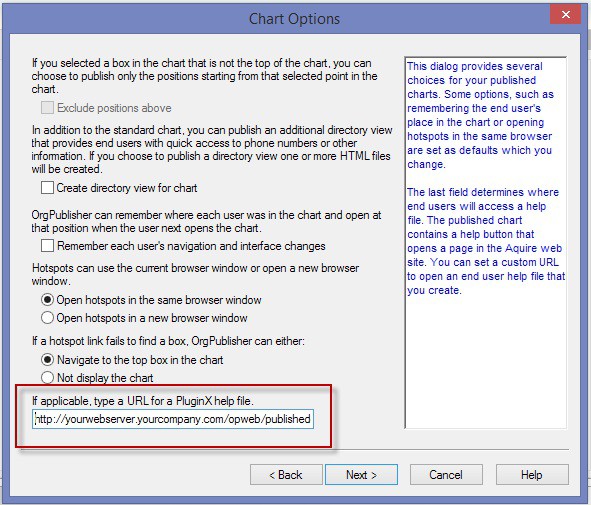
5. Finish out the wizard and publish your chart.
6. View the chart and click on the “Help” icon to verify that it’s bringing up your custom help file.
7. Save your chart and exit OrgPublisher.
If you run into any issues, please contact Support.